Showing posts with label Tip. Show all posts

December 4, 2011

Small utility to easily incorporate LaTeX equations in Evernote (or anything else)

I realize that such utilities already exist and that I'm not a good programmer, but this does exactly what I want and nothing more.  Click on the following link to download a lightweight program what converts TeX snippets into a pasteable image by utilizing the Google Chart service.

Download TeXer (updated to fix a bug with Windows XP on 12/05/2011)

Note:  This application requires the full .NET Framework 4.

When you first launch it, you will be presented with the following:


Press a key to set the global hotkey and you will be presented with this:


By pressing the hotkey-combination, you can show/hide this window.  You can set a new hotkey by pressing the "Set hotkey button".

Type some TeX into the textbox and an output image will be fetched and displayed.  This image will be automatically placed in your clipboard.  The image size can be controlled with the image height control:

Type your TeX
Paste the result!
Press Ctrl-Enter after done typing to hide the window (or use the hotkey).  The following procedure can be used to rapidly get an image of an equation into your Evernote post:

  1. Press the hotkey you assigned to show the program.
  2. Type the TeX.
  3. Ctrl-Enter
  4. Paste the image
A list of previously typed TeX snippets is recorded in the history dropdown box so you can get back to whatever you might've been working on before without having to retype everything.  Hopefully some will find this useful!

November 30, 2011

Label an image series from their filenames

What if you have a series of images (say, a series of plots at different times or screen captures at different experimental stages) and you want to quickly include them in a note without having to manually type out a description for each one?

Well, if you gave each image a descriptive filename when you created them, you're in luck!

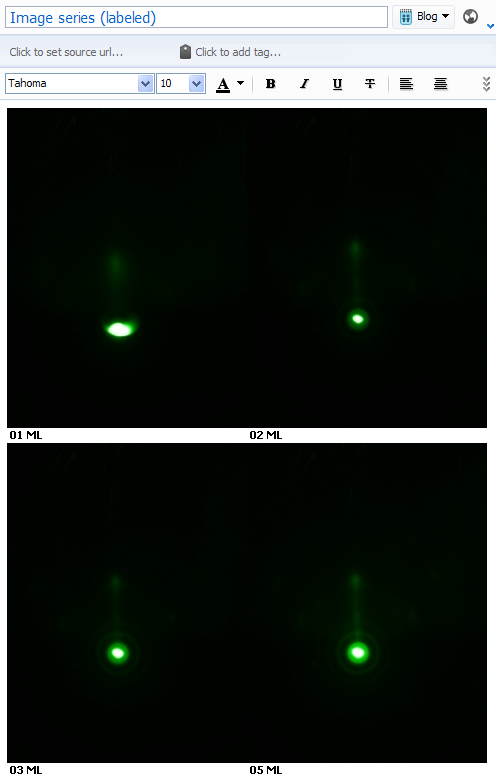
Consider the following note which contains a series of diffraction patterns after a certain number of monolayers (ML) of material has been grown:

What's going on?  It's impossible to tell what's what.  You could manually type descriptions of these images, but if you have 70 images instead of four, things get tedious.

The solution I've found is to use the freeware FastStone Image Viewer to expand each images' canvas and add its filename in the space created.  If your filenames are descriptive, this effectively auto-labels the images.

I'll describe the steps, but first the result (my filenames are 01 ML.png, 02 ML.png, 03 ML.png, and 05 ML.png):


Pretty slick.  The process was performed in batch so it takes about one minute to accomplish regardless of the number of images you have.

So, how to do it?  Well, after the FastStone Image Viewer is installed, fire it up and navigate to the folder containing your image series:


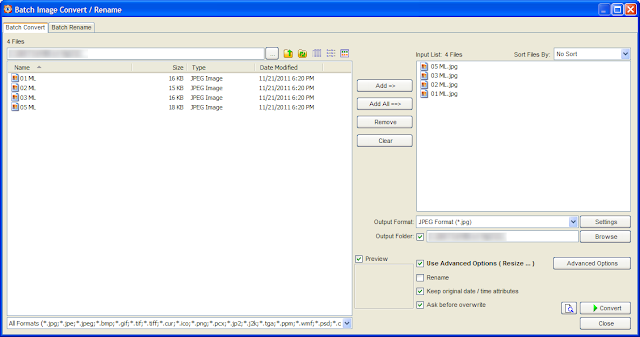
Select the images you want to process using the mouse or Ctrl-A then press F3 or go to Tools->Batch Convert Selected Images:


On this page, you can select your output file format, specify an output path, etc...


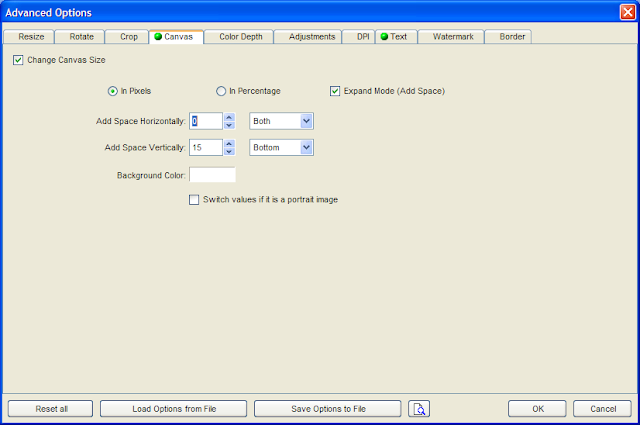
To get the magic to happen though, you need to select Use Advanced Options and click the Advanced Options button.  The following two images show how to set things up to add whitespace at the bottom and then fill it with the filename (minus the extension):


Once that's done, hit OK to get back to the Advanced Options screen and click the Convert button.  Voila.  The new images have been dumped into the specified output directory with the filename labels added.

A couple notes:
  1. If your filenames are long, you may need to add double or triple the whitespace to give them room to wrap.
  2. For some reason, selecting a bunch of images and pasting them into Evernote inverts their order (as seen in the folder or the FastStone Viewer).  You can simply inverse sort them or manually arrange them in the FastStone viewer before dragging with this in mind.
Hope that's helpful!

Make linked notes web-friendly

A gripe I have with the way Evernote renders shared notes for the web is that it does not dynamically convert note links to hyperlinks, even if the destination note is also shared.  My workaround is this:

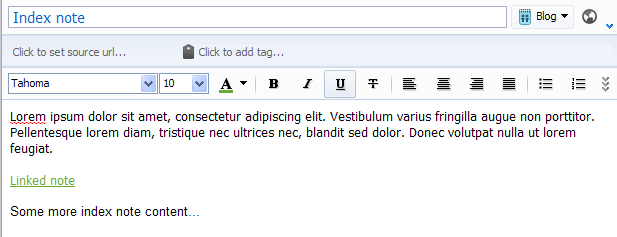
Consider the following index note containing a note link to a linked note as viewed in the Windows client:


Where the link was created in the Windows client by right-clicking on "Linked note", selecting "Copy Note Link", and pasting the result.

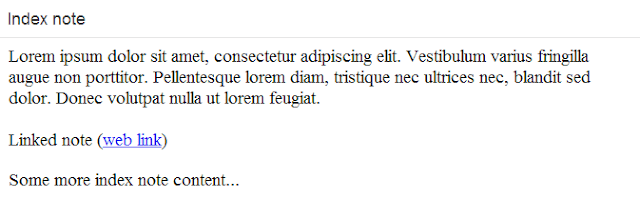
On the web, this is rendered as:


No link!  This is not what I want.  What to do?

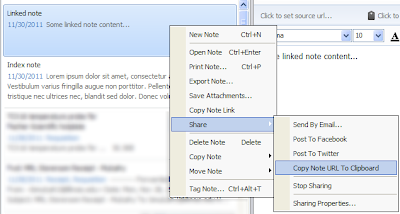
Right-click on "Linked note" and select "Share"->"Copy Note URL to Clipboard":


After the pasted note link in "Index note" type " (web link)", select "web link" and press Ctrl-k.  Paste the contents of your clipboard in the dialog box that appears and select "OK".

The result in the Windows client is:


And, on the web:


Clicking on "web link" will now point the browser to the web version of the linked note as desired.

It is my opinion that converting note links to hyperlinks if the destination is shared should be the default behavior but, since it's not, this workaround will have to do.